

Tetra Benchling Pipeline
The Tetra Benchling Pipeline pushes instrument and experimental results to Benchling. This integration component uses Tetra Data Pipelines to push data to Benchling by using Python scripts and the Benchling Python software development kit (SDK).
NOTEFor setups that require bi-directional communication between the Tetra Data Platform (TDP) and Benchling, see the Tetra Benchling Connector v1 deployment option. For more information, see Tetra Benchling Integration.
Design Overview
The Tetra Benchling Pipeline pushes instrument and experimental results to three different object constructs within Benchling:
Custom Entities: The construct to hold information that pertains to a particular user-defined entities like samples, batches, injections, etc. Custom Entities are part of Benchling’s Registry.Runs: The construct to hold information pertaining to an experimental run performed through an instrument, robot, or software analysis pipeline.Results: Structured tables that allow you to capture experimental or assay data. Results can be linked with Custom Entities in the Registry or to a Run in a notebook entry.
For more information, see Benchling’s developer platform documentation.
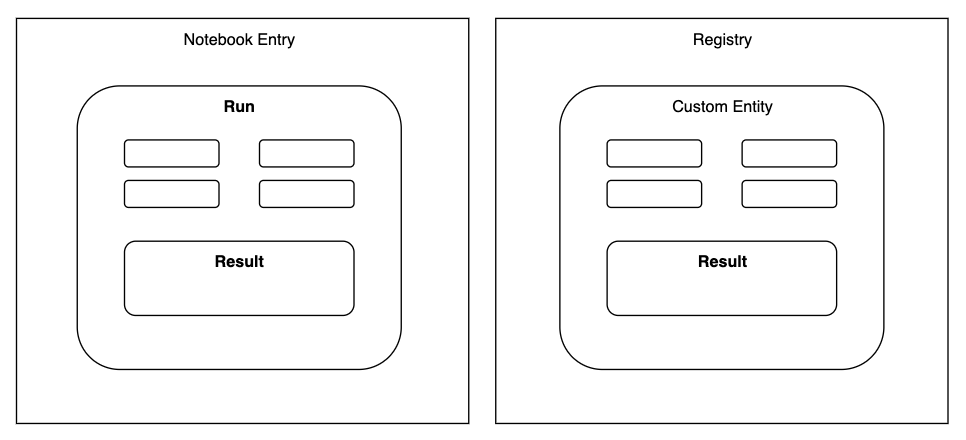
Figure 1. Object constructs and their relationships in Benchling
The Tetra Benchling Pipeline uses Tetra Data Pipelines to push data to Benchling by using Python scripts and the Benchling Python software development kit (SDK). Python scripts as a configuration input allows for scientific data engineers to configure their pipelines to match how they have set up the data schemas in Benchling without worrying about the underlying code or infrastructure of the integration mechanism.
Integration Modalities
Where can data go?
The TetraScience integration to Benchling utilizes the Benchling Python SDK and supports data integration to various Benchling Applications and endpoints. Some examples of such are:
- Creating a Benchling Lab Automation Run and adding experimental information and images to the Run, making it available for a Benchling user to insert the Run from the Benchling Notebook Inbox.
- Creating Benchling Results to record data such as plate reader results or a table recording a chromatography run’s fractions or peaks results, and linking this Result to a Lab Automation Run or a Custom Entity in Benchling Registry, or both.
Benchling File Output Processor for Large Data Set Support
If a large data set from the Tetra Data Lake is desired to be pushed to Benchling, our integration also supports the use of Benchling’s Output File Processor. This is the preferred approach in order to reduce the chances of hitting the API rate limit for uploading Results to Benchling. However, given that the Output Processor will process the given CSV file and generate one Results table, every data push will result in a new Results table. This may not be the desired behavior depending on the scientific use case and how data is being ingested into the Tetra Data Lake and is desired to be processed.
See the Modalities Decision Tree section for examples of how different scientific use cases result in different modalities of sending data to Benchling that the TetraScience integration facilitates.
Integration Modalities Decision Tree
Our integration with Benchling Notebook uses Benchling Lab Automation to facilitate automated data and result transfer, reducing manual transcription.
If Benchling Lab Automation is not used, the TetraScience integration to Benchling only supports pushing Results to Custom Entities in Benchling Registry.
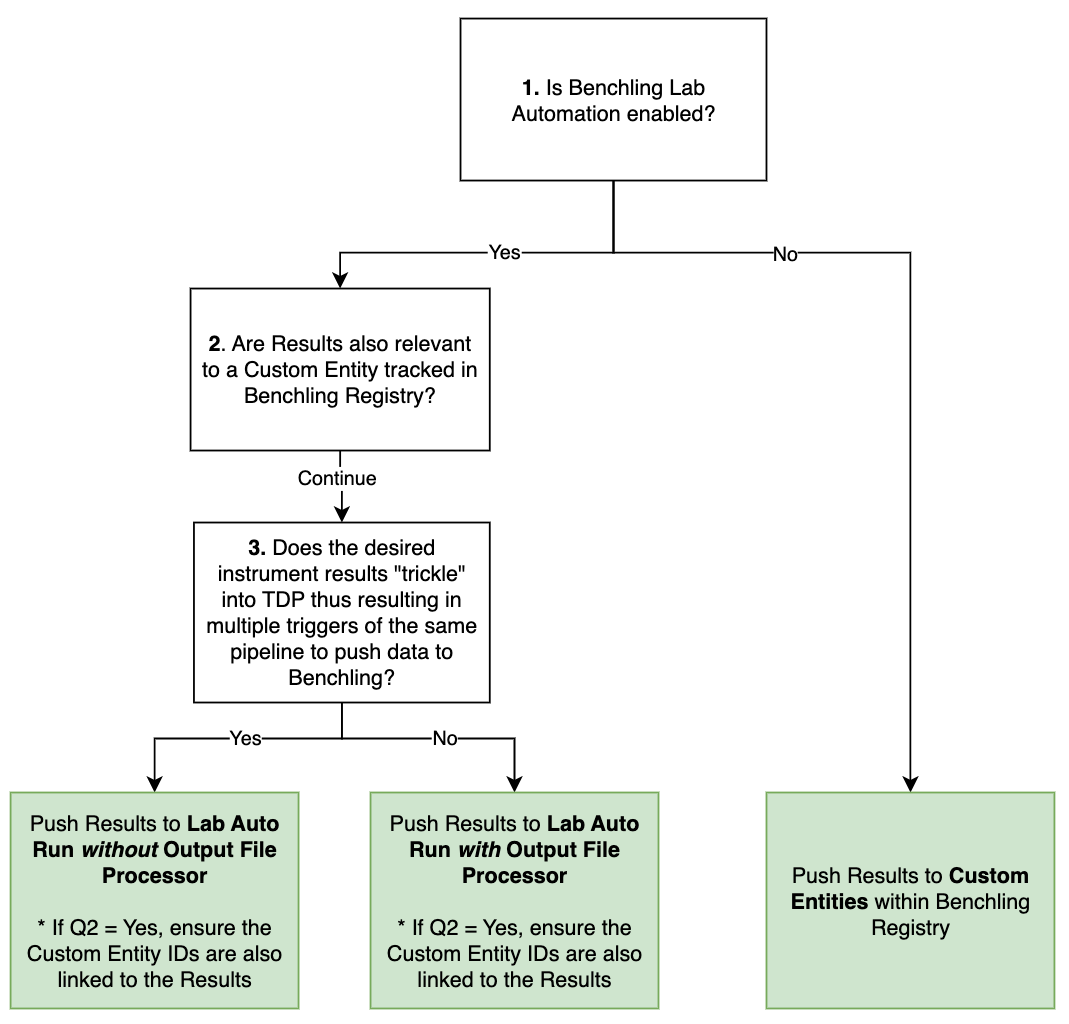
Figure 2. Decision Tree to assist in how to push data to Benchling from the Tetra Data Platform
Below are examples of scientific use cases and how the integration approach follows the modalities decision tree.
Example 1: Bioreactor Run
Scientific use case summary
A bioreactor run typically occurs for 30-90 days and throughout this run, the process can be monitored through the bioreactor control system PC. For run status updates and data sharing, scientists typically want a daily report out of minimum value, maximum value, mean, median, standard deviations, any alarm triggers, and cumulative values (if appropriate) for critical process parameters such as oxygen gas flow rate, stir rate, media temperature.
This type of run information and process data logging into a notebook entry allows scientists to document their bioreactor run for due-diligence, for record, as well as for quick snapshot assessments if the run is going as planned or not.
Recommended integration approach
Process data will likely be entering into the Tetra Data Lake in batches throughout the full bioreactor run. As data is received and processed in batches, Tetra Pipelines can be used to perform data transformation and basic calculations as appropriate to match the defined schemas of the Benchling Notebook Entry Run and Result.
We recommend not using the Output File Processor so that every new result entry can be appended to the same Results table in the Run.
If the particular cell line or cell batch is captured in Benchling Registry, then the generated Results that are in the Run can also be associated with the relevant Registry Custom Entities.
Example 2: Results From a Plate Reader
Scientific use case summary
A microplate reader is used to measure absorbance, fluorescence and luminescence from a 96-well plate to quantify protein expression. Scientists may want to see the result tables structured in various ways: a tabular representation of the plate and one table per measurement type, or perhaps all measurement values shown in one table per sample correlated with the different dilutions of that sample. However, typically each sample would be tracked in Benchling Registry and results would need to be associated back to the Custom Entities.
Recommended integration approach
Plate Reader results can be large in size, thus using the Output File Processor is recommended. Especially for any dataset coming from plates with greater than 24 wells, using the Output File Processor is strongly encouraged to not hit any Benchling API limits.
Additionally, if association of results to Custom Entities is desired, using the Output File Processor can also facilitate creating and registering Custom Entities.
Benchling Authentication
The TetraScience integration to Benchling supports both the Benchling App Authentication as well as API Key Authentication. We recommend saving any authentication credentials in the Tetra Data Platform’s (TDP) Shared Settings and Secrets storage.
App Authentication
When using app authentication, TetraScience will authenticate as an app in Benchling using the provided client ID and client secret. Actions performed by TetraScience will be governed by the permissions of the app that corresponds to the credentials. This is the preferred method of integrating TDP with Benchling, allowing more granular permissions and easy identification of API-driven activity in the logs. More information is available at Getting Started with Benchling Apps .
API Key Authentication
When using API key authentication, TetraScience will authenticate as a normal user in Benchling using the provided API key. Actions performed by TetraScience will be governed by the permissions of the user that corresponds to the API key. This is easy to get started with but not preferred for a production solution.
Setting up Pipelines with the Tetra Benchling Integration
The TetraScience to Benchling integration is powered by Tetra Data pipelines. The protocol that is used for sending data from TDP to Benchling is python-exec-benchling.
Protocol Overview
The python-exec-benchling protocol provides a Python-based approach to integrating with Benchling. This protocol leverages the Benchling Python SDK and provides helper functions to simplify common integration tasks.
Refer to TetraConnect Hub for Latest Implementation DocsFor the latest technical specifications and implementation examples, see Transmit - Benchling in the TetraConnect Hub.
The python-exec-benchling protocol workflow consists of:
-
Transform with Python: This setup allows for the custom transformation of the contents and attributes of the input file that triggered the pipeline. The transformation constructs the exact schema structure and content to be sent to the targeted Benchling objects. For more details about the expected output object structure, see Transmit - Benchling in the TetraConnect Hub.
-
Push to Benchling: The Python script uses the Benchling SDK to perform the appropriate API calls for sending the provided contents to Benchling Assay Runs or Benchling Registry Custom Entities.
Note that the Benchling Project ID (
projectId) is required for pushing data to a Benchling Notebook Entry.
Key Features
- Python-based transformations: Use familiar Python syntax to transform and map data
- Benchling SDK integration: Direct access to Benchling SDK functions through the
benchlingcontext object - Label-based configuration: Configure runs and results using file labels
- Output file processor support: Automatically process CSV files for bulk result uploads
Protocol Configuration
The python-exec-benchling protocol requires the following configuration:
Required Shared Settings and Secrets
- Benchling Client ID (Shared Setting): The client ID of the Benchling app with access to the associated schemas and projects
- Benchling Client Secret (Shared Secret): The client secret for the Benchling app
- Benchling Domain (Shared Setting): The Benchling URL (e.g.,
tenant.benchling.com), without thehttps://prefix
Pipeline Trigger Configuration
Pipelines using the python-exec-benchling protocol are typically triggered by files with specific labels:
- Labels with
run_fields_prefix: Specify values for Benchling run fields (e.g.,run_fields_sequence_name,run_fields_location) - Label:
destination: Set tobenchlingto indicate the file should be processed for Benchling - Label:
run_project_id: The Benchling project ID where the run should be created - Label:
run_schema_id: The Benchling run schema ID to use - Label:
run_processor_name(Optional): The name of the output file processor to use for bulk result uploads
Python Script Configuration
The protocol accepts a Python script that defines the transformation and integration logic. The script has access to:
input: Dictionary containing the input file pointer and metadatacontext: TDP context object with helper functions for file operations and label managementbenchling: Benchling integration object with methods for creating runs, results, and processing output files
Example Python Script
Here is an example Python script for the python-exec-benchling protocol:
def get_label(label_name, labels_list):
    return list(filter(lambda x: x['name'] == label_name, labels_list))[0]['value']

# Get file labels
labels = context.get_labels(input['input_file_pointer'])

# Process labels to get run information
run_fields = {
    l['name'][11:]: l['value']
    for l in labels
    if l['name'].startswith('run_fields_')
}
print(run_fields)

run_project_id = get_label('run_project_id', labels)
run_schema_id = get_label('run_schema_id', labels)

try:
    run_processor_name = get_label('run_processor_name', labels)
except:
    pass

# Set the Benchling project for all operations
benchling.set_project(run_project_id)

# Create Benchling run
run = benchling.create_run(run_fields, schema=run_schema_id)
print(run)

# Create and start an output processor (if configured)
try:
    task = benchling.process_output(run=run['id'], name=run_processor_name, blob=input['input_file_pointer'])
except:
    pass

# No need to return anything
Recommendations for Protocol Configuration
- We recommend setting the
Retry Behaviorfor this integration pipeline to be0. The reason being that if an error occurs, it is likely due to a malformed JSON payload, which can result in unexpected data in Benchling. This can easily be cleaned up on Benchling by archiving results, but failed retries can lead to additional clean up steps for the end user. - We recommend using Benchling App Authentication for protocol configuration whenever possible.
Documentation Feedback
Do you have questions about our documentation or suggestions for how we can improve it? Start a discussion in TetraConnect Hub. For access, see Access the TetraConnect Hub.
NOTEFeedback isn't part of the official TetraScience product documentation. TetraScience doesn't warrant or make any guarantees about the feedback provided, including its accuracy, relevance, or reliability. All feedback is subject to the terms set forth in the TetraConnect Hub Community Guidelines.
Updated 5 months ago