

Create Custom Protocols with Python
Protocols define the business logic of your Tetra Data Pipeline. If your custom logic isn't complex (Python scripts with less than 12,000 characters), you can configure your own protocol directly in the TDP user interface by using a custom Python script and the python-exec protocol.
NOTEFor custom pipeline setups that are more complex (12,000 characters or more), it's recommended that you create and manage your own self-service Tetra Data Pipelines (SSPs).
Example python-exec Use Cases
python-exec Use CasesTo view example Python scripts for common pipeline use cases, see the following resources in the TetraConnect Hub:
- Python-exec: Decorating raw and IDS files with context from IDS
- Python-exec: Decorating files using Excel as a data source
- Python-exec: adding labels with Context API
For access, see Access the TetraConnect Hub.
Create Custom Pipeline Logic by Using python-exec
python-execTo create custom pipeline logic by using the python-exec protocol, do the following.
Step 1: Create a Python Script
Create a Python script that contains your custom pipeline's business logic.
When you create the script, keep in mind the following:
- The script will be able to use all the functions in the Context API by using the global
contextvariable. - The script will also receive a reference to the input file for the pipeline at
input['input_file']. For example, the following script will print out the name of the file that triggered the pipeline: - The script can access pipeline configuration values, including shared settings and shared secrets, through
context.pipeline_config. For more information, see Use Shared Settings and Secrets.
result = context.get_file_name(input['input_file'])
print(result)
Available Python Libraries
To view a list of the Python libraries that the latest python-exec protocol version supports, see the artifact's ReadMe tab on the Protocol Details page in the TDP. For instructions, see View Protocols and Their Details.
Python Script Example
The following example Python script programmatically reads a file's contents and then adds labels to the file based on the equipment number found in the file path:
# Pipeline input always consists of _input_ object (dict with 1 key: `input_file`)
# and context API object (see developers.tetrascience.com)

"""Set up"""
# You can use built-in python libraries and a short list of additional packages
from pathlib import Path
import simplejson as json

# Interact with TDP logging using the context.get_logger() function
logger = context.get_logger()

# Simple log message
logger.log(f"input object keys: {list(input.keys())}")

# Get the input file pointer
ids_file_pointer = input['input_file']

# Read the IDS file contents
ids_file_bytes = context.read_file(ids_file_pointer, form="body")["body"]
ids_file = json.loads(ids_file_bytes)

# Instantiate the list of labels to be added
labels = []

"""Begin retrieving label values"""
# Get the IDS file path, which contains the raw file path
ids_file_path = Path(ids_file_pointer['fileKey'])

# Get equipment number from file path
eq_path= ids_file_path.parents[1]
eq_num = eq_path.name.upper()
labels.append(
    {
        "name": "eq_number",
        "value": eq_num
    }
)

# Detailed log message
logger.log(
    {
        "message": f"eq_num: {eq_num}",
        "level": "info"
    }
)

"""Add labels to IDS file"""
context.add_labels(ids_file_pointer, labels)
Step 2: Create a python-exec Pipeline
python-exec PipelineTo create a Tetra Data Pipeline that runs your custom Python script, follow the instructions in Set Up a Pipeline.
For Step 4: Select a Protocol in the pipeline configuration procedure, do the following:
- On the Pipeline Edit page, choose Select Protocol.
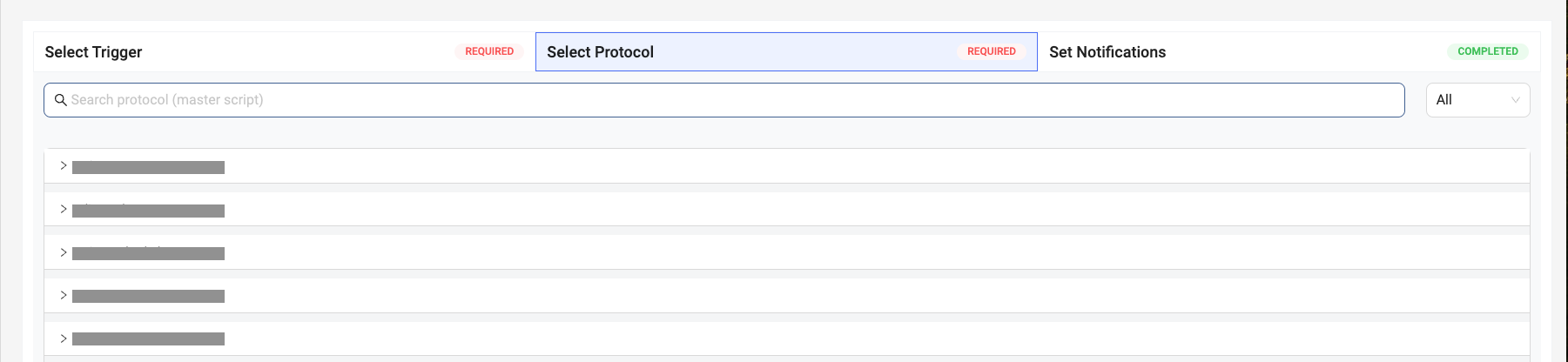
- In the Search field, enter Python Exec. Then, select the Python Exec (common/python-exec) protocol. A Configuration pane appears.
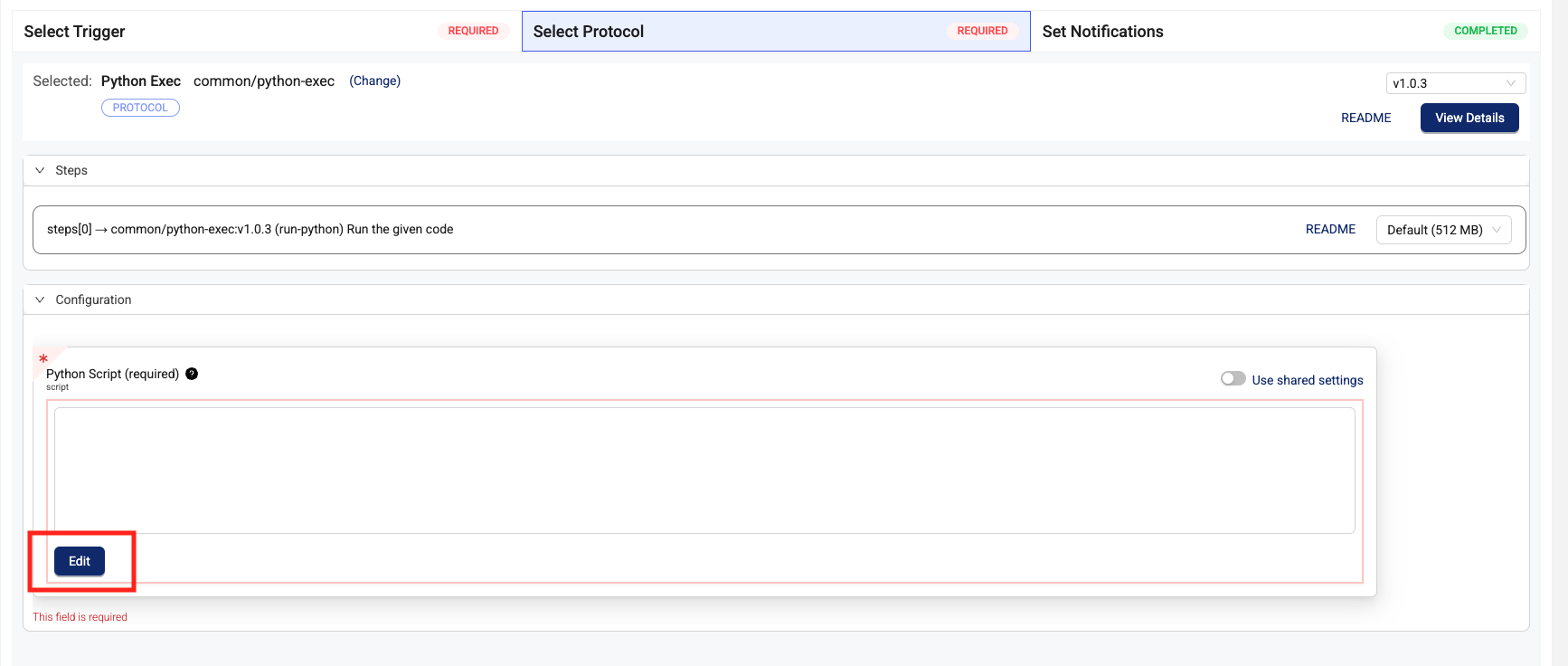
- In the Python Script (required) section, choose Edit. A String Configuration: Python Script dialog appears.
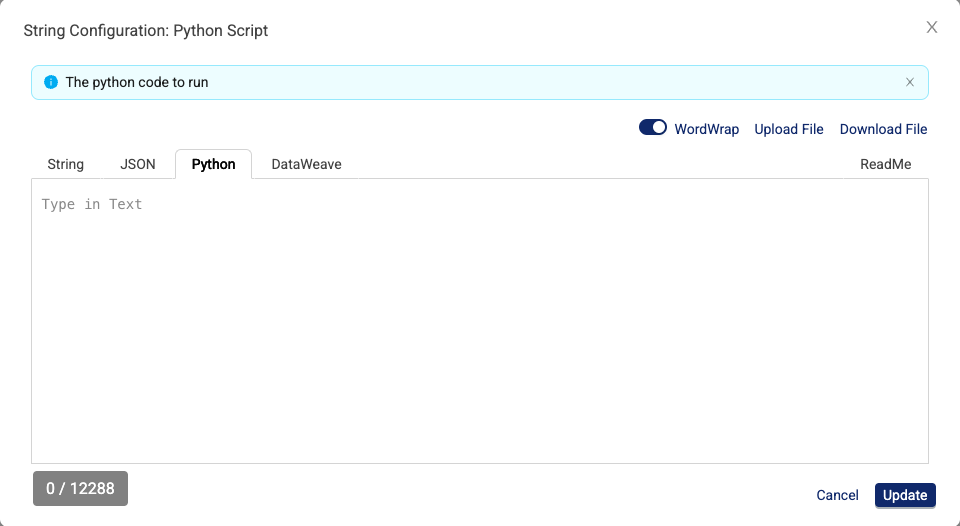
- Select the Python tab. Then, enter your custom Python script.
- Choose Update.
- (Optional) In the Configuration pane, configure the Third-Party System Setting (shared_setting) and Third-Party System Secret (shared_secret) fields to pass a shared setting or secret to your script. For more information, see Use Shared Settings and Secrets.
- (Optional) Configure email notifications about successful and failed pipeline executions in the Set Notifications pane.
- Choose Save Changes.
Use Shared Settings and Secrets
The python-exec protocol's Configuration pane includes two optional fields for passing shared settings and secrets to your Python script. These fields correspond to config entries in the protocol's protocol.yml file, and their values are passed to your script through context.pipeline_config:
- Third-Party System Setting (
shared_setting) — Passes a shared setting value to your script. Use this for non-sensitive configuration values that you want to reuse across pipelines, such as a third-party API base URL or a server hostname. - Third-Party System Secret (
shared_secret) — Passes a secret reference to your script. Use this for sensitive values such as API keys, passwords, or access tokens. The secret value is stored securely and retrieved dynamically at runtime.
NOTEBefore you can use shared settings or secrets in a pipeline, an Admin must first create them on the Shared Settings page in the TDP.
Your script can access these values in two ways:
context.pipeline_config— Usecontext.pipeline_config.get('shared_setting')orcontext.pipeline_config.get('shared_secret').inputdictionary — Useinput["shared_setting"]orinput["shared_secret"]. This approach is more common in scripts published to TC Hub.
The examples below use context.pipeline_config, but either approach works. Note that input may vary by pipeline.
TIPTo pass more complex information to the script, such as key-value pairs, consider using a JSON-formatted string and decoding it using
json.loads()inside the script.
Access a Shared Setting
When you select a shared setting for the Third-Party System Setting field in the pipeline configuration, its value becomes available in your script through context.pipeline_config (or input["shared_setting"]). The value is a plain text string.
# Access the shared setting value (for example, a third-party API URL)
api_url = context.pipeline_config.get('shared_setting')

logger = context.get_logger()
logger.log(f"Using API URL: {api_url}")
Access a Shared Secret
When you select a secret for the Third-Party System Secret field in the pipeline configuration, its value becomes available in your script through context.pipeline_config (or input["shared_secret"]) as an AWS Systems Manager (SSM) Parameter Store reference. To retrieve the actual secret value, pass the reference to the context.resolve_secret() function.
# Get the secret reference from pipeline config
secret_ref = context.pipeline_config.get('shared_secret')

# Resolve the SSM reference to get the actual secret value
api_key = context.resolve_secret(secret_ref)

logger = context.get_logger()
logger.log("Successfully retrieved secret")
WARNINGDo not log or print the resolved secret value. Doing so could expose sensitive credentials in pipeline logs.
Shared Settings and Secrets Example
The following example Python script uses a shared setting and a shared secret to call a third-party REST API and add labels to the input file based on the API response:
import simplejson as json
import urllib.request

logger = context.get_logger()

# Get the shared setting (third-party API base URL)
api_url = context.pipeline_config.get('shared_setting')

# Get the shared secret (API key) and resolve it
secret_ref = context.pipeline_config.get('shared_secret')
api_key = context.resolve_secret(secret_ref)

# Get the input file name
file_pointer = input['input_file']
file_name = context.get_file_name(file_pointer)
logger.log(f"Processing file: {file_name}")

# Call the third-party API
req = urllib.request.Request(
    f"{api_url}/samples?file={file_name}",
    headers={"Authorization": f"Bearer {api_key}"}
)
response = urllib.request.urlopen(req)
result = json.loads(response.read())

# Add labels from the API response
labels = [{"name": "sample_id", "value": result.get("sample_id", "unknown")}]
context.add_labels(file_pointer, labels)
logger.log(f"Added labels: {labels}")
Documentation Feedback
Do you have questions about our documentation or suggestions for how we can improve it? Start a discussion in TetraConnect Hub. For access, see Access the TetraConnect Hub.
NOTEFeedback isn't part of the official TetraScience product documentation. TetraScience doesn't warrant or make any guarantees about the feedback provided, including its accuracy, relevance, or reliability. All feedback is subject to the terms set forth in the TetraConnect Hub Community Guidelines.
Updated 4 months ago