

Tetra File-Log Agent Installation Guide (v4.5.x)
Shows how to install and connect the Tetra File-Log Agent to the Tetra Data Platform (TDP), including network architecture, proxy and firewall requirements, and network folder access setup.
This guide shows how a system administrator can install Tetra File-Log Agent versions 4.5.x and connect it to the Tetra Data Platform (TDP).
To configure and use the Agent after it's installed, see the Tetra File-Log Agent User Manual (v4.5.x).
UpgradesTo upgrade an Agent from a previous version, see Upgrade an Agent.
Overview
To install and run the Tetra File-Log Agent, do the following:
- Complete the prerequisites.
- Create an Agent in the TDP.
- Install the Agent.
- Verify the Installation.
- Connect the Agent to the TDP.
For instructions, see the procedures in each of the following sections.
Step 1: Complete the Prerequisites
Hardware and Software Requirements
To install and run Tetra File-Log Agent v4.5.x, the following hardware and software are required:
- One of the following Microsoft Windows versions:
- Windows 11
- Windows Server 2022
- Windows 7 Service Pack 1 (SP1) or later, with TLS 1.2 enabled
- Windows Server 2008 R2 SP1 or later, with TLS 1.2 enabled
- .NET 8.0
- 8 GB RAM minimum (16 GB is recommended)
- 4 core CPU minimum (Intel Xeon 2.5.0 GHz or equivalent)
- Before uploading a file to the TDP, the Agent copies it to the Group User temporary folder on the host server. Make sure this folder has enough free space to handle the largest file or folder the Agent will upload. Define a Group User and configure its environment variables to redirect temporary files to a dedicated drive. This drive should have at least 3× the size of the largest file or folder the Agent will upload.
NOTE:The File-Log Agent can only retrieve files stored on the NTFS file system. Other file systems are not supported. Also, when using NTFS, do not make any directory you want to watch case-sensitive.
Network Architecture
The following is the recommended network architecture for connecting the Tetra File-Log Agent to the TDP:
Agent host server → Customer forward proxy → TDP (Tetra-hosted)
In this architecture:
- The Agent runs on a Windows server in your on-premises network or private cloud.
- The Agent sends outbound HTTPS traffic through your organization's forward proxy server, which controls and filters outbound access.
- The proxy connects to the TDP and AWS endpoints.
NOTENo inbound connections from the internet to your network are required. All Agent communication is outbound (Agent-initiated) over HTTPS (port 443).
For more information and best practices, see Recommended Architectures for Network Connectivity to Private Cloud and On-Premises Components in the TetraConnect Hub. For access, see Access the TetraConnect Hub.
Proxy and Firewall Requirements
The Agent requires outbound HTTPS access (port 443) to several TDP and AWS endpoints. Configure your proxy or firewall to allow the following endpoints.
Required TDP API Endpoint
Allow access to your target TDP environment's API endpoint. Each TDP environment has a unique API URL that must be used to call TetraScience API endpoints. To identify which API URL to use in your requests, review the following deployment URLs and confirm which one you use to access your target TDP environment. Then, add its listed API URL to your proxy's or firewall's allow list.
| Region | Deployment URL | Deployment | API URL |
|---|---|---|---|
| US | |||
| platform.tetrascience.com | MT | https://api.tetrascience.com/v1/ | |
| platform-us.tetrascience.com | MT 2 | https://api.platform-us.tetrascience.com/v1/ | |
| gxp.tetrascience.com | MT GxP Prod | https://api.gxp.tetrascience.com/v1/ | |
| EU | |||
| platform-eu.tetrascience.com | MT | https://api.platform-eu.tetrascience.com/v1/ | |
| platform-eu2.tetrascience.com | MT 2 | https://api.platform-eu2.tetrascience.com/v1/ | |
| gxp-eu-val.tetrascience.com | MT GxP Val | https://api.gxp-eu-val.tetrascience.com/v1/ | |
| gxp-eu.tetrascience.com | MT GxP Prod | https://api.gxp-eu.tetrascience.com/v1/ |
For single-tenant (ST) deployments, the URL format is: https://api.<customer-tenant>.tetrascience.com
Required Endpoint for Receive Commands Option (Recommended)
For the Agent to Receive Commands from the TDP (activated by default), the following endpoint must also be allowed. This endpoint for US-based MT deployments (us-east-1). For EU deployments, replace us-east-1 with eu-west-1 or your deployment’s AWS Region.
| Endpoint | Purpose |
|---|---|
https://sqs.us-east-1.amazonaws.com | Fetch command messages and return processing status |
Required Endpoints for S3 Direct Upload Option (Recommended)
S3 Direct Upload is enabled by default and recommended for all setups. The following AWS endpoints must be allowed. These are for US-based MT deployments (us-east-1). For EU deployments, replace us-east-1 with eu-west-1 or your deployment’s AWS Region.
| Endpoint | Purpose |
|---|---|
https://{infrastructure name}-{environment}-datalake.s3.us-east-1.amazonaws.com | Data upload (regional) |
https://{infrastructure name}-{environment}-backup.s3.us-east-1.amazonaws.com | Data upload (regional) |
https://{infrastructure name}-{environment}-events.s3.us-east-1.amazonaws.com | Data upload (regional) |
https://{infrastructure name}-{environment}-datalake.s3.amazonaws.com | Data upload (global) |
https://{infrastructure name}-{environment}-backup.s3.amazonaws.com | Data upload (global) |
https://{infrastructure name}-{environment}-events.s3.amazonaws.com | Data upload (global) |
https://logs.us-east-1.amazonaws.com | Agent heartbeats and logs |
https://monitoring.us-east-1.amazonaws.com | Agent metrics (CPU, memory, disk) |
For the complete and current list of endpoints, see Tetra Agent Allow List Endpoints.
For more information about recommended network architectures, see Recommended Architectures for Network Connectivity to Private Cloud and On-Premises Components in the TetraConnect Hub. For access, see Access the TetraConnect Hub.
Network Folder Access Requirements
If the Agent needs to monitor files on network shared folders (rather than local folders only), the following is also required:
- The Windows server hosting the Agent must have network access (SMB over port 445, TCP, and UDP) to any computers whose shared folders need to be monitored.
- You must configure a dedicated Windows service user account (Group User) with the following permissions:
- At least Read and List folder content permission on the network shared folders (including all subfolders and files).
- Membership in the local user group of the Agent host server.
- No account expiration date — if the account expires, the Agent can't extract data and data acquisition is interrupted.
- The Log on as a service permission.
NOTEIf you don't configure a Group User, the Agent runs under the Windows predefined LocalSystem account, which can only access local folders. To access remote network folders, you must provide a Group User. For instructions, see Configure a Windows Service User Account for the Agent in the User Manual.
Alternative Connection Option: Tetra Hub
If your network doesn't allow direct outbound internet access, you can use a Tetra Hub as an on-premises proxy to route Agent traffic to the TDP and AWS. In this setup, the Agent only needs network access to the Hub — the Hub handles all external connectivity.
For more information, see Agent Deployment Options.
Step 2: Create an Agent in the TDP
To create a Tetra File-Log Agent in the TDP, follow the instructions in Create a New Agent. When you create the Agent, you must first select a data connection type. For the recommended setup (connecting directly to the TDP), choose No Connector. For AGENT TYPE, make sure that you select File-Log Agent.
Step 3: Install the Agent
TetraScience provides a Microsoft Windows Installation Package (.msi) file to install the Tetra File-Log Agent on the host server.
To get the installation package and install the Agent, do the following:
IMPORTANTTo access the server and run the installation package, you must sign in as an Administrator.
- On the host server, download the latest File-Log Agent installation package from the Tetra Agent & Connector Installers page in the TetraConnect Hub. For access, see Access the TetraConnect Hub.
- Right-click the installation package. Then, select Properties and click Unblock near the bottom of the window.
- Move the downloaded files to a local folder.
- Run the installer by opening the installation package and follow the guided wizard to complete the installation.
Default Installation Folder Location
C:\Tetrascience\Tetrascience.Agent.File-Log.[vX.X.X]
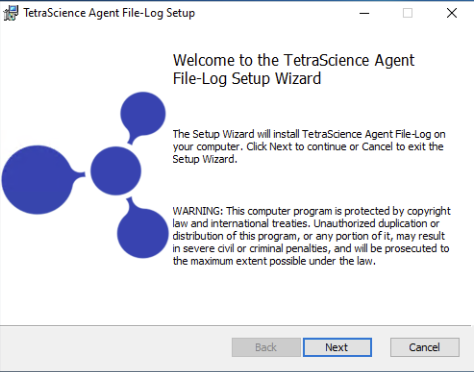
After the Agent is installed, the TetraScience File-Log Agent shortcut is added to the Windows All Apps menu. To initialize the Agent, you must add the configuration settings.
NOTETo restrict access to the local Tetra Agent Management Console, you can edit the Agent’s installation folder’s permissions to grant least privilege access. For more information, see Restrict Access to Agent Installation.
Step 4: Verify the Installation
Confirm that the Tetra File-Log Agent was installed on the local drive by verifying the following:
- The TetraScience File-Log Agent is installed under the
C:\\TetraSciencedirectory by default. - Under the TetraScience folder, TetraScience.Agent.FileLog.vx.x.x appears.
- The bin subfolder appears under the TetraScience.Agent.FileLog.vx.x.x folder.
- The TetraScience folder is added to the Windows Start menu, which includes the TetraScience Agent File-Log application.
NOTETo launch the TetraScience File-Log Agent Management Console, select the TetraScience File-Log Agent link in the Windows Start Menu.
Step 5: Connect the Agent to the TDP
From the Tetra File-Log Agent Management Console, configure the connection to the TDP.
This is the recommended setup for connecting to the TDP, which uses the No Connector option:
- In the left navigation menu, under Menu, choose Configuration.
- Verify that the S3 Direct Upload toggle is set to active (the default value is set to active). For more information, see S3 Direct Upload (Recommended).
- Verify that the Receive Commands toggle is set to active. The Receive Commands option is activated by default.
- For Agent Id, enter the Agent ID (you can find this on the Agents page in the TDP).
- For Connection Url, enter your TDP API endpoint (for example,
https://api.tetrascience.com/v1/data-acquisition/agent/). See Proxy and Firewall Requirements for the endpoint URL for your deployment. - For Org Slug, enter your organizational slug. To get your organizational slug, see Viewing Organization Details. It's also available on the first page of the install Agent dialog on the TDP.
- For Authorization, select Add/Edit. In the dialog that appears, enter the JWT of the TDP service user you configured when creating the Agent. To get the TDP service user's JWT, see Generate a JWT for a Service User. Then, choose Save to encrypt and save the JWT.
After you enter the information, the Agent immediately validates the TDP connection status next to the Connection Url field.
- (Optional) When the Destination Id is entered, the Agent uploads the files to the platform using the Destination Id instead of the Agent Id. Agents sharing the same Destination Id will upload files to the same data lake location defined using the Destination Id instead of Agent Id, allowing files from multiple agents to be uploaded to the same Amazon S3 location. This feature helps to split the load into multiple agents for scaling horizontally.
- (Optional) To configure proxy settings, select Advanced Settings and set the Proxy option to System (to use your Windows system proxy) or Custom (to specify proxy settings directly). For more information, see Configure Advanced Settings in the User Manual.
For Tetra Hub Setups (Optional)
If you're connecting through a Tetra Hub instead, enter the Hub's connection URL (for example, http://10.100.1.2:8443/generic-connector/v1/agent). For more information, see Agent Deployment Options.
NOTEIf you make any updates to a Tetra Agent Group User (Windows service user account) or TDP service user, you must restart the Agent for the changes to take effect.
Configure Advanced Connection Settings (Optional)
To adjust the default settings for data connection status checks and Agent log file uploads, select Advanced Settings on the Configuration page. The following settings are available:
- Data Connection status check every: Indicates how often the software checks the status of the connection (heartbeat) between the TDP and the Agent. If the TDP doesn't receive a heartbeat message for more than five minutes, the TDP assumes that the Agent is offline. The default value is
30seconds. - Agent log files upload every: Indicates how often the Agent uploads log files to the Data Lake. The default value is
300seconds. - To keep the recommended settings, or to save the new values you entered, choose OK. Only consider changing these values if connection checks (heartbeat) frequency needs to be changed, or if log files need to be uploaded to the TDP at a different frequency.
Save and Start the Agent
To save and start the Agent, do the following:
- In the Agent Management Console, select the Save button at the top of the page.
- Select the Start button.
- Verify that the Agent Status displays as Running.

Verify that the Agent Can Retrieve Source Data
When the Agent is running, you can validate the detection, generation, and upload of an Agent file by doing the following:
- From the Tetra File-Log Agent Management Console, navigate to the Summary tab and review the Agent status.
- After the Agent completes its routine scan and generates a RAW file, validate the following tasks listed in the Processing Summary section:
- Scanned files/folders: total number of files or folders detected by the agent across all paths.
- Generated files: number of file versions* generated.
- Uploaded: number of file or folder versions* that have been uploaded by the agent successfully.
- If a single file/folder is scanned and uploaded, then later modified and uploaded again, this will result in the generated and upload counts having a count higher than the Scanned count.
Verify That the Generated RAW Files are Uploaded to the TDP
To confirm that the RAW files are uploaded to the TDP, do the following:
- Open the Search page in the TDP.
- Run a search for the RAW files the Agent generated. The files should appear in the search results.
Next Steps
To configure and use the Agent after it's installed, see the Tetra File-Log Agent User Manual (v4.5.x).
NOTEWhen configuring the Agent, you can use a Windows task script to automatically restart the Tetra File-Log Agent each day at a specific time. This setup ensures that the Agent remains online without having to check it each day. For instructions, see Windows Scheduled Task Settings in the Tetra File-Log Agent User Manual (v4.5.x).
Documentation Feedback
Do you have questions about our documentation or suggestions for how we can improve it? Start a discussion in TetraConnect Hub. For access, see Access the TetraConnect Hub.
NOTEFeedback isn't part of the official TetraScience product documentation. TetraScience doesn't warrant or make any guarantees about the feedback provided, including its accuracy, relevance, or reliability. All feedback is subject to the terms set forth in the TetraConnect Hub Community Guidelines.
Updated 3 months ago