

Data Capture App
The Data Capture App provides scientists the ability to capture readings from simple instruments, such as balances and pH meters. It then automatically uploads those measurements to the Tetra Scientific Data and AI Cloud, where they can be accessed, processed and passed to downstream systems such as ELNs and LIMS.
NOTEThe Data Capture App is available in beta release currently and is activated for customers through coordination with TetraScience. For more information, or to activate the app in your environment, contact your customer success manager (CSM) or account executive.
Workflow
The following diagram shows an example Data Capture App workflow.
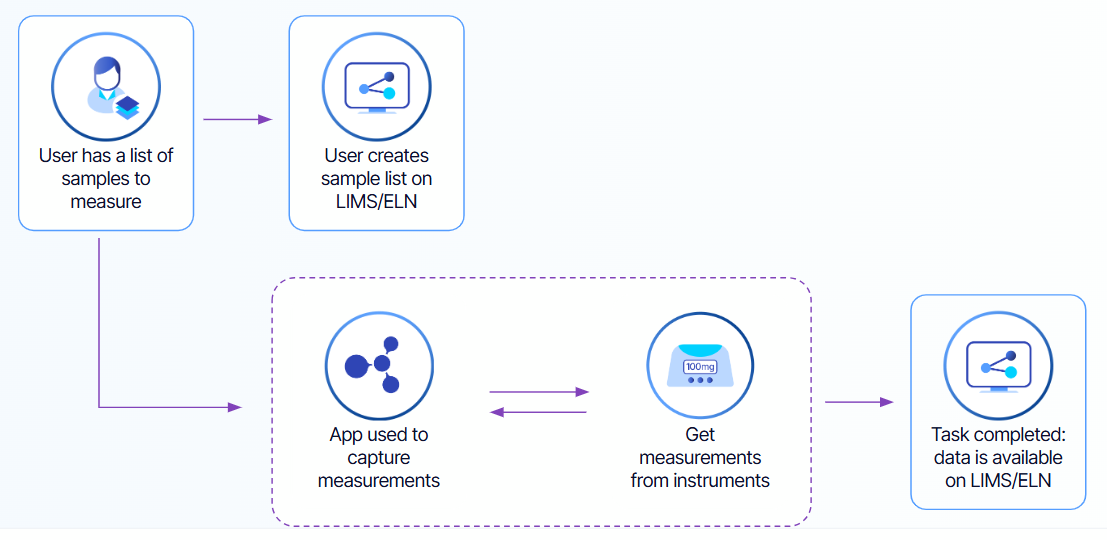
The diagram shows the following process:
- A scientist identifies samples to measure on a device (e.g., pH meter, balance).
- The scientist creates a sample list in their organization's LIMS or ELN system, which is integrated with the TDP.
- The scientist captures measurement (e.g., photo of a balance display) for each sample on a device by using the Data Capture App. A QR code placed on the balance helps the app automatically identify the instrument.
- The scientist reviews each captured reading in the app to make sure that they're accurate before confirming that the data is ready to be uploaded.
- The readings are automatically uploaded to the TDP, where the data is immediately accessible through the preconfigured LIMS or ELN system, and the TDP user interface.
Prerequisites
Data Capture App requires the following:
-
Tetra Data Platform (TDP) v4.4.1 or higher.
-
AI Services v1.1 or higher
activated in your TDP environment. -
(Recommended) Threads App v0.8.0 or higher activated in your TDP environment. For more information, see Threads App.
-
Supported platforms and hardware:
- MacOS 12 (Monterey) or higher (64-bit Intel or Apple Silicon)
- Windows 10 or higher (32-bit or 64-bit)
- A camera (built-in or external) for capturing instrument readings and QR codes. For best results, a rear-facing 1080p camera is recommended
- Device must have network access to TDP
NOTE:QR codes that encode each instrument's identification information. Make sure that you place the QR code close to the instrument display. The QR code must be captured in the same image frame as the displayed reading. For more information, see Creating QR Codes.
User Guides
For more information about how to use the Data Capture App, see the latest user guide:
Documentation Feedback
Do you have questions about our documentation or suggestions for how we can improve it? Start a discussion in TetraConnect Hub. For access, see Access the TetraConnect Hub.
NOTEFeedback isn't part of the official TetraScience product documentation. TetraScience doesn't warrant or make any guarantees about the feedback provided, including its accuracy, relevance, or reliability. All feedback is subject to the terms set forth in the TetraConnect Hub Community Guidelines.
Updated 6 months ago