

TetraScience AI Services User Guide (v1.0.x )
This guide shows how to use TetraScience AI Services versions 1.0.x.
NOTETetraScience AI Services are currently part of a limited availability release and must be activated in coordination with TetraScience along with related consuming applications. For more information, contact your customer account leader.
Prerequisites
TetraScience AI Services requires the following:
- Tetra Data Platform (TDP) v4.4.1 or higher
- A TDP role that includes at least one of the following policy permissions:
Access AI Services
To access TetraScience AI Services, do the following:
- Sign in to the Tetra Data Platform (TDP) as a user with one of the required policy permissions .
- In the left navigation menu, choose Artifacts.
- Select AI Services. The Scientific AI Workflows page appears.
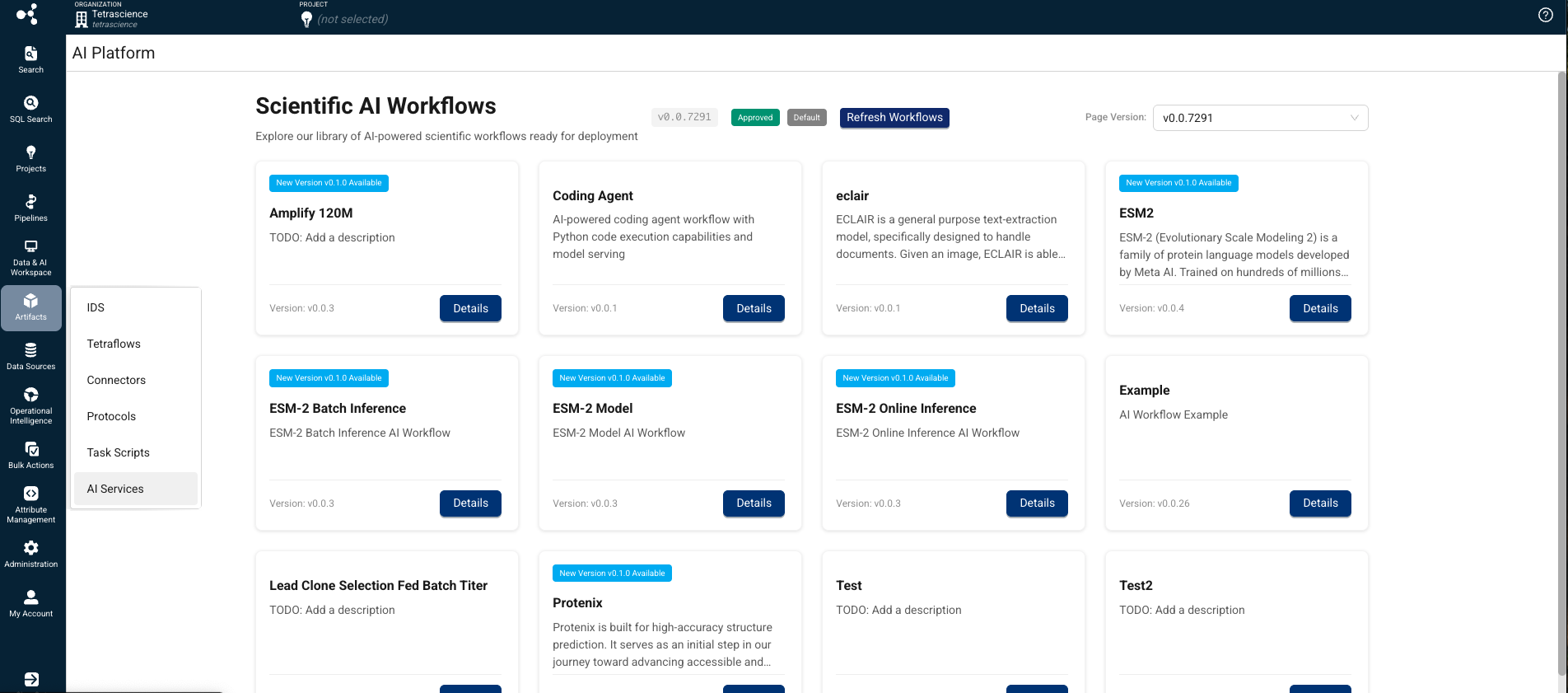
On the Scientific AI Workflows page, you can do any of the following:
- Find a Scientific AI Workflow for your use case: Browse and review workflow versions with associated metadata.
- Activate a Scientific AI Workflow: Admins can activate a specific workflow version to make it available for authorized users.
- Install a Scientific AI Workflow: Provision the required compute resources on-demand, resulting in an inference endpoint you can call programmatically .
- Uninstall a Scientific AI Workflow: Remove the compute resources for a workflow without deleting its artifacts or versions.
- Update the AI Services user interface version: Update the AI Services UI to the latest version.
You can also monitor Scientific AI Workflow jobs through the TDP Health Monitoring Dashboard.
To run an inference using an installed Scientific AI Workflow, see Run an Inference (AI Services v1.0.x).
Find a Scientific AI Workflow for Your Use Case
To browse Scientific AI Workflows by version and metadata, do the following:
- Open the AI Services page as a user with one of the following policy permissions :
- Tenant Admin
- Organization Admin
- Developer
- Machine Learning Engineer
The Scientific AI Workflows page appears and displays the AI Workflows available to your organization.
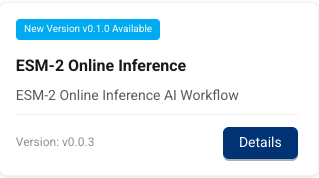
- Find the workflow for your use case. Each workflow's tile displays its name, description, and current version number. Workflows that have new versions available are marked with a New Version vx.x.x Available banner. To get more information about a specific workflow, or to install it, select the workflow's Details button.
NOTEIf you don't see a Scientific AI Workflow for your use case, contact your customer account leader. The ability to create custom AI Workflows isn't currently available, but is planned for a future AI Services release.
Activate a Scientific AI Workflow
To activate a specific AI workflow version and make it available to authorized users in your organization, do the following:
- Open the AI Services page as a user with one of the following policy permissions :
- Find the workflow that you want to activate.
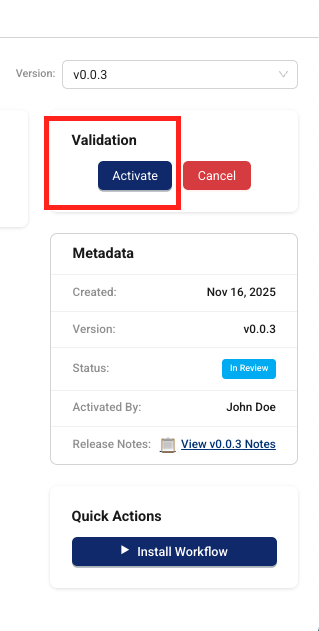
- Choose the workflow tile's Details button. The AI Workflow's page appears.
- In the Validation tile, choose Activate. The AI workflow is now activated and is available to authorized users in your organization through the AI Services page.
Install a Scientific AI Workflow
To activate compute resources for specific Scientific AI Workflows on-demand and get an inference URL that you can call to run an inference, do the following:
- Open the AI Services page as a user with one of the following policy permissions :
- Find the workflow that you want to install and receive a new inference URL for.
- Choose the workflow tile's Details button. The AI Workflow's page appears.
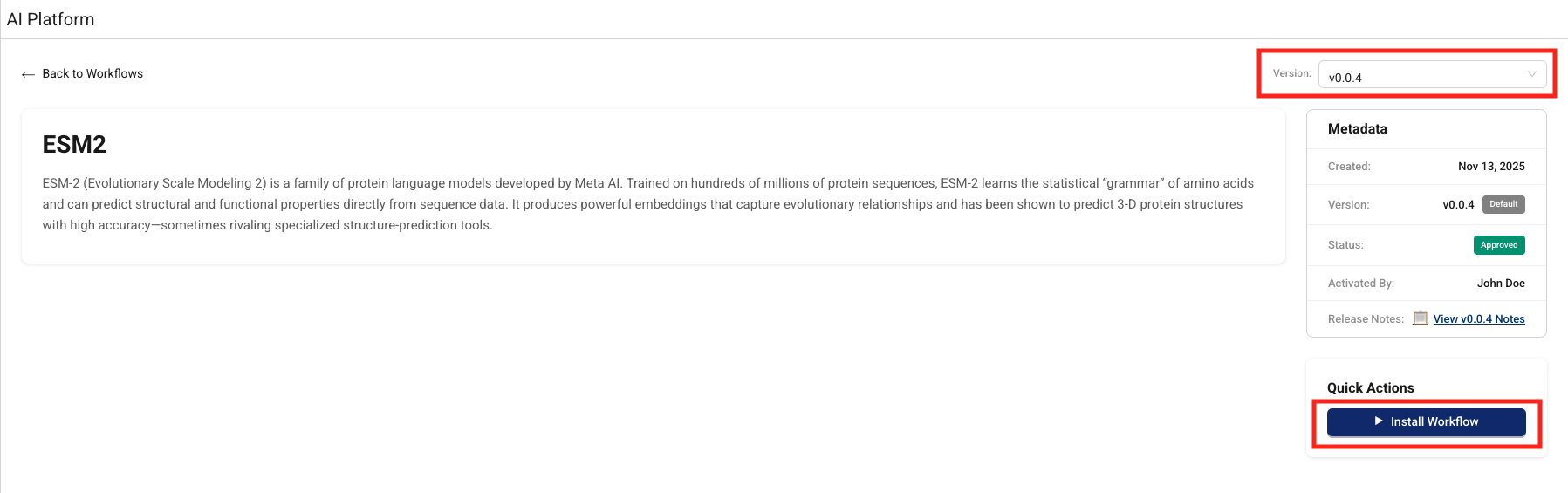
- In the Version dropdown, select the workflow version that you want to install.
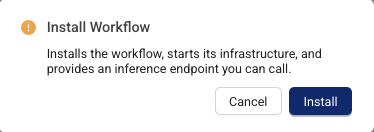
- Choose Install Workflow. The Install Workflow dialog appears and prompts you to confirm that you want to install the workflow. Choose Install.
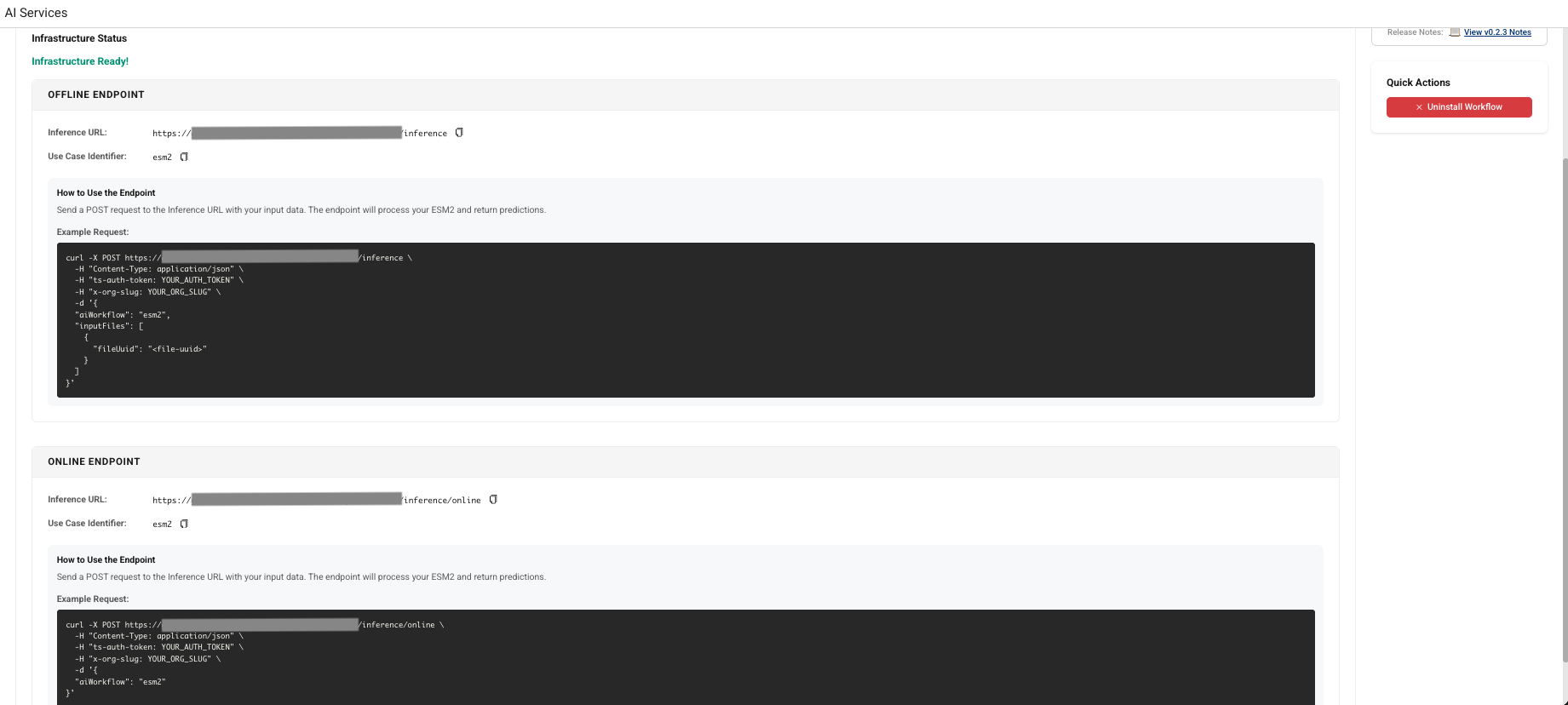
The infrastructure status appears. Setting up your inference environment may take several minutes.

- Copy either the OFFLINE ENDPOINT or the ONLINE ENDPOINT, based on the type of inference you want to run. You can then send a
POSTrequest to the inference URL with your input data, and the endpoint will process it and return a response. For more information about how to run an inference using your installed AI workflow, see Run an Inference.
Run a Scientific AI Workflow Inference
TetraScience AI Services provides two API endpoints that you can call using your installed AI workflow:
- Submit an online (synchronous) inference request(
/inference/online): invokes the appropriate LLM, AI agent, or custom model to return real-time predictions from text-based inputs. - Submit an offline (asynchronous) inference request(
/inference): Provides inputs through JSON files or specify datasets for batch predictions and asynchronous processing.
For more information, see Run an Inference (AI Services v1.0.x) .
Uninstall a Scientific AI Workflow
To remove the compute resources for an AI workflow without deleting its artifacts or versions, do the following:
- Open the AI Services page as a user with one of the following policy permissions :
- Find the workflow that you want to uninstall.
- Choose the workflow tile's Details button. The AI Workflow's page appears.
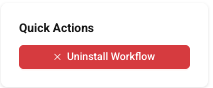
- Choose Uninstall Workflow.
The Uninstall Workflow dialog appears and prompts you to confirm that you want to uninstall the workflow. Choose Uninstall.
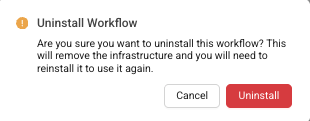
The Scientific AI Workflow infrastructure is removed without deleting its artifacts or versions. To use the AI workflow again, you must reinstall it.
Monitor Scientific AI Workflow Jobs
To track failed inference jobs through the TDP Health Monitoring Dashboard, do the following:
- Sign in to the TDP as a user with one of the required policy permissions .
- In the left navigation menu, choose Health Monitoring. The Health Monitoring page appears with the Dashboard tab selected by default, which displays an end-to-end snapshot of your components' health for your entire TDP ecosystem.
- Select the Jobs tab. Then, for Artifact Type, select AI Workflow. A list of your TDP organization's Scientific AI Workflow job failures appears, including details about each failed job.
Update the AI Services UI Version
To update the AI Services user interface to the latest version in your TDP organization, do the following:
- Open the AI Services page as a user with one of the following policy permissions :
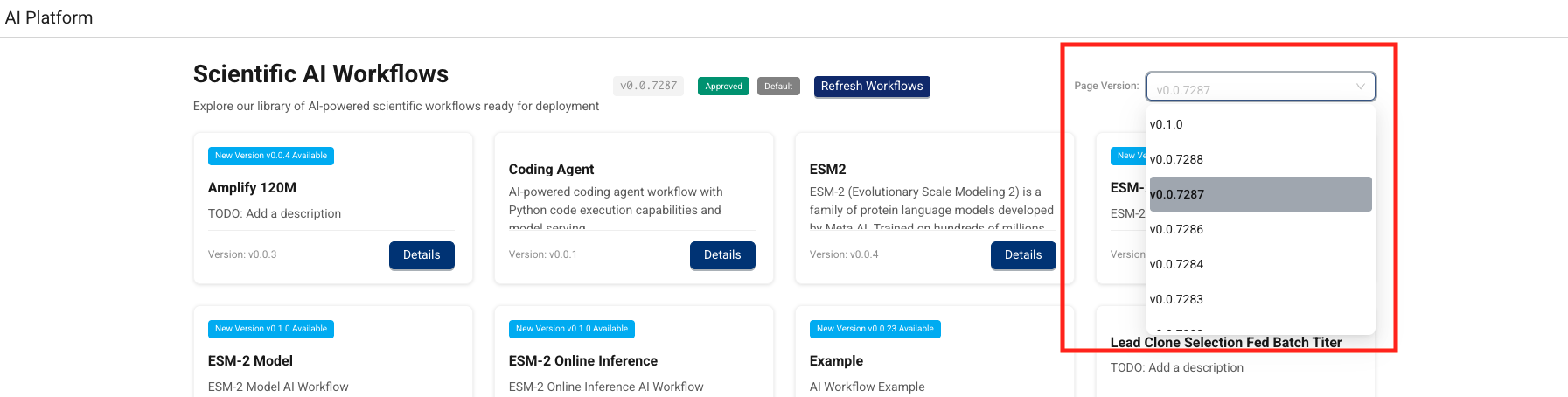
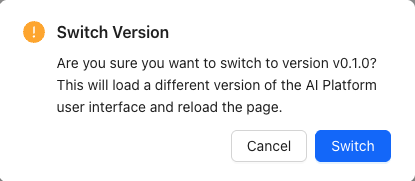
- In the Page Version dropdown, select the latest AI Services UI page version. A dialog appears that asks you to confirm that you want to update the AI Services UI to the latest version.
- Choose Switch. The latest AI Services UI appears and becomes the default page version for your organization.
Limitations
The following are known limitations of Tetra AI Services:
- Task Script README Parsing: The platform uses task script README files to determine input configurations. Parsing might be inconsistent due to varying README file formats.
- AI Agent Accuracy: AI-generated information cannot be guaranteed to be accurate. Agents may hallucinate or provide incorrect information.
- Organization-Specific Components: AI capabilities are limited to publicly available TetraScience components and cannot incorporate organization-specific components.
- Complex Logic Implementation: AI-generated pipelines with complex logic may require manual implementation and refinement.
- Databricks Workspace Mapping: Initially, one TDP organization maps to one Databricks workspace only.
For more information, see the AI Services FAQs .
Documentation Feedback
Do you have questions about our documentation or suggestions for how we can improve it? Start a discussion in TetraConnect Hub. For access, see Access the TetraConnect Hub.
NOTEFeedback isn't part of the official TetraScience product documentation. TetraScience doesn't warrant or make any guarantees about the feedback provided, including its accuracy, relevance, or reliability. All feedback is subject to the terms set forth in the TetraConnect Hub Community Guidelines.
Updated 4 days ago